 Computing on Demand PC News & Reviews

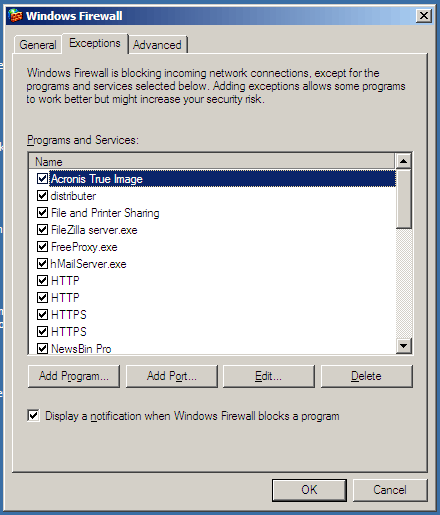
Before you test whether or not your FTP Server is functioning, you MUST add it to your firewall exceptions list and forward the ports (Default Ports = TCP/UDP- 21, 50000-50100) in your router if you are using one. Adding the application to the windows firewall is extremely simple. You can access the firewall configuration by opening the Windows Firewall application in your control panel.
- In the Exceptions tab, select add program
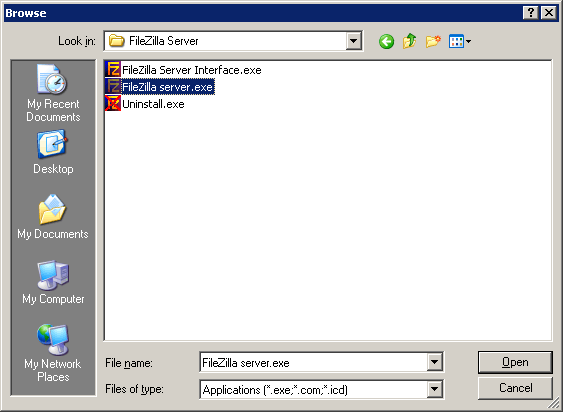
- Navigate to c:\Program Filesh\FileZilla Server
- Select FileZilla server.exe
- Click OK a few times and you now have allowed FileZilla Server as an exception in your Windows Firewall.
You should now be able connect to your FTP server. You can set up an FTP client (FileZilla has a very good and Free FTP client as well) to connect to your server using the address: ftp://xxxxxx.homeserver.com and the username / password you created. Enjoy your FTP server.
If you have any questions or comments, please visit our forums. You will be able to find help or offer suggestions. Also, the fine folks over at WeGotServed.co.uk are a great resource for help.


CAN'T CONNECT? MAKE SURE YOU ADD PORTS/EXCEPTIONS TO THE WHS "Windows Firewall" application located in the Control Panel.
Okay, so I just followed your instructions and everything went well except for two issues. First was that WHS 3.0 includes the stupid FTP service. So that needs to be disabled first. Second was to make sure that you also specify what ports Filezilla should listen on in the General Settings. I kept wondering why I wasn't connecting and then I finally realized that I needed to put the ports (20,21,50000) into that field in those settings. Once that happened, everything worked like a charm. Thanks for the quick write-up.
Hello,
Thankyou for your artical.
Filezilla and WHS working, great I now have ftp.
I have one question for you in your shares image you have 'c:ftpusers:u'
Q. what is the ':u' for? (I don't think its needed)
thanks.
The :u creates the user directory as soon as they log in instead of you creating it manually. This is useful if you have users for FTP that you don't have for WHS.
I have set up a FileZilla FTP server on my HP Windows Home Server per the instructions given here but get a timeout when I try to connect via a FileZilla FTP client. A buddy of mine gets a timeout, too, when trying to access my FTP server from outside. In troubleshooting, I confirmed that port 21 is open on my network by using the port check tool available here: http://www.canyouseeme.org/ – in fact, my FTP server responds to that test, showing that a connection was made, then disconnected. Testing port 50000 gave an error, though. I don't understand why that would be the case since I forwarded ports 21 and 50000 – 50100 in my Verizon router's firewall settings. I don't know what else to try to fix this. Any ideas? TIA.
As someone stated in one of the other comments, Media Smart servers now have software on them that uses port 21… try a different port for the FTP server and see what happens.
Thanks for your reply. I had looked through other folks' comments – must have missed that one – sorry. I just tried ports 20, 23, and 30 but still get the timeout trying to connect. I'm uncertain what ports to try. Is there some way to tell which ports are available to try on the home server?
I am still puzzled, too, as to why my ftp server responds to connection attempts from CanYouSeeMe.org but will not respond to my FileZilla client.
Try setting your Filezilla client to passive. It may be set to Port. If it is set to passive currently try PORT… verizon routers are goofy.
I tried various settings in my client, including what you suggested, with no luck. Still getting timeouts trying to connect to the server. I think I'm gonna have to give up on this for now and move on, but thanks for your advice.
I have just run into a situation similar to yours. I replaced my router and was unable to connect to my FTP server even though everything was EXACTLY identical. It seems that my router is unable to perform a loopback connection. It works from the outside using my dynamic hostname, but not internally.
I followed this tutorial over a year ago with success. However, after updateing my MediaSmart server to the latest version 3 release I found it would not collect files from clients. Days of investigation yielded that the Mediasmart 3 software uses ftp on IIS and when you install Filezilla it tries to use the same port. Long story short…..if you want to run this on a newer Mediasmart server (or software version), you need to change the port number to something other than 21 or it will interfere with other things.
Hi, I am trying to install this FTP software on my WHS system and every time i try to download it the download gets canceled, if i download the software on another system then transfer it to the WHS system every time i try to execute the file i get an error indicating i do not have permission … and i am the administrator ..??
What am i doing wrong?
THX
Just FYI, if you need to access the FTP server from within the same network, use the internal IP of your WHS as the hostname i.e. 192.168.1.21 . I ran into 'no data connection' errors when trying to use the outside 'homeserver.com address from wihtin my LAN.
I'm using ftp filezilla client and I get message it just can't communicate with server
Any idea?
I can ftp my server from my network but I can't ftp the server from outside my network
Are you sure that you forwarded the ports in your router to the IP address of your server? Double check that you gave the proper permissions on the Home Folder for your users. Also, try disabling the windows firewall and see if that helps. Are you running any other software that could be acting as a firewall?
Hey this is fantastic….
I have set it all up but through a browser it claims that i have invalid login ( user and pass )
not sure why…since I know what they are.
any advice would be greatly appreciated.
If you didn't allow anonymous usage for your FTP, you usually have to Select the File menu, then login as from explorer shells.
Just forgot to mention that I forward port 50000 to 50100 in my linksys, also I added Filezilla to exception list in my server firewall
Thanks
After following the instructions to set up server , I’m able to connect from my network if I use my WHS internal IP address, but if I use the WHS Remote Access URL (xxxxxxx.homeserver.com) which I have in my ftp setting it doesn't work.
Also if I try my external IP address from my network it doesn't work
When I'm able to connect using my internal IP address I can see my folders but I can't copy anything to them
Do I need to have a client to connect to my FTP?
Any idea why?
Try a WHS system restart before connecting with FileZilla – sorted out all of my previous connection issues
I think I did. I have a DI-524 D-Link Router. There is a virtual server page where I set my private IP address to forward from port 21 using both tcp and udp. There is an applications page where I set this Firezilla app to “trigger” on ports 50000-50100 with public port 21. I didn’t see any other applicable setting but there might be. On the server side.
Good morning again…
My first problem is now solved and I have created user group on the server. My next problem is to open C: on the server. How do I do this? The server is not visible in the explorer. All i can find are the folders for users and shared folders under my network places.
I am using a Scaleo homeserver with 2 hard drives.
Pls help….
Regards,
Michael E
Good morning,
I am trying to follow your guide and have installed the ftp server on my desktop but when the connect to server app starts it will not connect to the server and the setting dialog in edit is greyed out. I have tried both the servers internal ip and my xxx.homeserver.com adresses. Also tried changing to port 21 in the dialog.
No luck…Please help!
Best regards,
Michael
I made some progress but am having the same problem a lot of other people reported, i.e. Tim who said”After following the instructions, I’m able to connect if I use my WHS IP address, but if I use the WHS Reote Access URL (xxxxxxx.homeserver.com), it will not. Any idea why? I tried xxxxxxx.homeserver.com, ftp://xxxxxxx.homeserver.com, and http://ftp.xxxxxxx.homeserver.com. None will work for me.”
This is the same problem I am having. I have opened the 50000-50100 ports on router. What else should I try. I didn’t see a definitive solution to this multiply reported problem
You must be sure that the ports on the Router are forwarded to the INTERNAL IP address of your WHS. Also, what FTP client are you using to connect to your FTP server? Most of the more popular ones (Filezilla FTP client, CuteFTP, etc) will tell you the issue with the connection; whether the IP didn’t resolve or the username/password are incorrect. If you could try the client then tell me the error it gives I can help further troubleshoot your issue.
I really appreciate it. I had previously just used ftp at my xp dos prompt and from a windows explorer. I downloaded the FileZilla Client. I tried it that way and got:
Status: Resolving address of jesfamily.homeserver.com
Status: Connecting to 98.217.239.141:21…
Status: Connection attempt failed with “ETIMEDOUT – Connection attempt timed out”.
Error: Could not connect to server
I had forwarded port 21 to my internal whs ip address.
Did you forward the passive Ports? Did you make sure to allow this app through the windows firewall or third party firewall?
I went through these steps. Setting up the server went ok. It is running now. I cannot ftp to my xx.homeserver.com and have no idea where to go from here. I can ping my homeserver from a client. I can remote access to it and so on, but with FTP running on the server, I cannot ftp to it from a client. Any ideas.
How do you actually install Filezilla in WHS? I copied it to the server, installed it, and it was installed on my notebook and not the server.
Thanks in advance for your assistance.
Hi Joe,
I’ve tried your steps and repeated it twice but I keep getting this error:
Error: Connection timed out
Error: Could not connect to server
I opened my ports 20,21, 5000,5100 on my homeserver that’s hosting the server but I still can’t access it. Any help would be greatly appreciated!
Thanks!
Try changing the ports to 50000-50100. Don’t forget to update your router
Thanks for a superb article, Joe. Very helpful.
I had a smilar problem with the directory listing above –
Command: MLSD
Response: 425 Can’t open data connection.
Error: Failed to retrieve directory listing.
I solved it by: Opening the site manager in my FTP client (Filezilla again for me!), setting up the homeserver ftp as described with my login details, going to the Transfer Settings Tab and selecting ACTIVE for the transfer mode instead of passive.
All works perfectly now, and I have a much more manageable interface for file transfer on my WHS.
I think I have followed direction exactly, but am getting this error upon login attempt through filezilla ftp client.
Waiting to retry…
Status: Resolving address of xxxxxxx.homeserver.com
Status: Connecting to xx.xx.xx.xx:xx…
Status: Connection attempt failed with “ECONNREFUSED – Connection refused by server”.
Note: I added the “x”s for security paranoia
First off, I want to thank you for writing such a great piece. I’m running into one problem though… Once I connect I get the following:
Command: MLSD
Response: 425 Can’t open data connection.
Error: Failed to retrieve directory listing.
I’m able to log on fine but I just can’t open my home directory.
Also, is it c:\ftpusers\:u or c:\ftpusers\u:? You list :u in your article but in your responses above you use u:. Anyway, either way I’m not able to list my home directory. I did notice that it did create a new directory (my username) under ftpusers.
Any help would be much appreciated!
If it created the folder in the directory it worked. You have to make sure you have TCP and UDP for ports. Otherwise you will get some errors.
Same here. If i use the WHS remote IP. it will connect i can access 1 of 3 folders and i also cannot transfer files. If I use the LAN IP it works perfectly.
After following the instructions, I’m able to connect if I use my WHS IP address, but if I use the WHS Reote Access URL (xxxxxxx.homeserver.com), it will not. Any idea why? I tried xxxxxxx.homeserver.com, ftp://xxxxxxx.homeserver.com, and http://ftp.xxxxxxx.homeserver.com. None will work for me.
This is the problem i’m having – If i connect to the FTP server from inside my network, it works fine, but when i try to connect from outside the network, it seems to fail on entering passive mode.
Here’s the log from the client side:
–logon stuff–
Response: 230 Logged on
Status: Connected
Status: Retrieving directory listing…
Command: PWD
Response: 257 “/” is current directory.
Command: TYPE I
Response: 200 Type set to I
Command: PASV
Error: Connection timed out
Error: Failed to retrieve directory listing
And on the server side:
(000015) 7/31/2009 9:28:45 AM – XXXXX (xxx.xxx.xxx.xxx)> 257 “/” is current directory.
(000015) 7/31/2009 9:28:45 AM – XXXXX (xxx.xxx.xxx.xxx)> TYPE I
(000015) 7/31/2009 9:28:45 AM – XXXXX (xxx.xxx.xxx.xxx)> 200 Type set to I
(000015) 7/31/2009 9:28:45 AM – XXXXX (xxx.xxx.xxx.xxx)> PASV
(000015) 7/31/2009 9:28:45 AM – XXXXX (xxx.xxx.xxx.xxx)> 227 Entering Passive Mode (xxx,xxx,xxx,xxx,19,142)
(000015) 7/31/2009 9:29:06 AM – XXXXX (xxx.xxx.xxx.xxx)> disconnected.
You can configure your ftp client to use Port or Active until I experiment with my configuration to find you a solution to the passive woes.
Same as Mike and Bjorn… A little precision would be nice (something I liked about your hMailServer piece), as in WHO’s ‘Home’ directory?!? MY ActiveDirectory entries in the registry (and I assume everyone else’s) are based on a logged on user. What user?!? The one attempting logon? Because that sure as heck doesn’t have anything to do with the group (which is where the directories are set in your instructions, unless you are saying everyone in the group has to have the same ‘Home’ directory set for them in the registry). Is it based on the user account FileZilla server is running in? What EXACTLY are we supposed to use for the home directory, that is, what specific steps do you have to take to get the ‘Home’ directory that will work for FileZilla Server on my machine (from among two dozen user accounts on this machine, most with ‘Home’ directories that are a concatenation of their user name and one of the public shares)…
If I am to understand what you are doing; you are installing this on a server (not WHS) or using the already created user directories on WHS as the “home” directories for Filezilla? Also, please remember that we are not talking windows home folders at this point but Filezilla Home folders.
This article was designed for Windows Home Server which is not domain controller and using folders that we are controlling, however, I might still be able to help alleviate some confusion here. If you are to use either the folders created by windows home server for the users or home directories on a domain controller, you would substitute (c:\FTPUsers\u:) for whatever folder your user directories are in ie (\\Server\users\u:). At that point, you would have to make sure that the user name you create for your users are EXACTLY as those that are the folder names for each user and do not check the box for autocreate.
The article I designed was to allow more users than accounts I have on WHS. I can have unlimited FTP accounts and home folders (FTP Server based home folders) with filezilla without occupying WHS user accounts.
If this reply doesn’t help a little more information on your exact setup (ie. are you doing this on WHS? or another server, are you trying to use the user folders created by whs, etc.). I will also try to write a part 2 to this for using the Users directories that WHS creates as the “home” folders.
Also, I don’t typically do this, but I might be available for a Webex session this weekend to help you get this up and running if you can then in turn help me make the solution to your problem more clear to the readers of the article.
I have the exact same problem as Mike B. Connection works fine, but it doesn´t list my shares.
Any ideas?
Typically, when it doesn’t list your shares, you don’t have them set up properly. Make sure you have the alias as /Music (the slash too). Also, make sure your Home folder is set up similar to mine \\server\Documents\FTP Users\u:
I can connect to the server just fine. However it is not able to retrieve a directory listing. I thought I followed your instructions to the letter. Any advice on this one? I am using filezilla as a client and as the server. Thanks
Hi,
When you mention WHS given URL, what exactly is that? Is it the domain name for the regular remote access? Because Mine has already expired and I don’t want to pay for any more service because my router does not work with it.
The WHS url (hostname) is actually free. You don’t pay for that. Your router shouldn’t need to be configured for that either. xxxx.homeserver.com
I installed everything as instructed in this tutorial but I can seem to get connected through cyberduck ftp client. When I try to login it says user and password incorrect. Is there suppose to be a data file in the FTPUser folder when you create a user because I don’t see anything in that folder. What is the point of that folder if there is nothing in it.
The idea behind the FTP Home directory is that of a staging area of sorts. It allows the Folder alias’s a place to spawn. The alias is similar to a virtual folder, like a symbolic link. By placing this link in the users FTP Home directory, it doesn’t reveal the true folder path.
It is also a good destination for file uploads instead of having users upload directly to your shares.
Thanks for this, it helped me a lot. I had swapped over from using XP Pro on a spare box to WHS recently and had gotten to the part of setting my FTP for my family back up. I followed what you wrote and I was up an sending to my dad in a matter of 20minutes. Thank you for taking the time to write this up.
I was able to install filezilla. Followed the instructions and can not seem to connect. I forwarded ports 20 thru 21, 5000 thru 5100 to my server address. I’m using Filezilla client. Any suggestions? Maybe I need to restart the server?
I would double check to make sure you made the proper firewall exceptions on WHS. Also, verify that your host os (vista, xp, whatever) is allowing the connection.
I could not get the filezilla software to install. When I clicked on it, it stated that I did not have access rights. I right clicked to see if I could run as Admin but was not available. Any suggestions? I’m sure it is something that I’m doing just don’t know what. To get to the WHS desktop I use the To Desktop addin. I’m not sure if that is part of the issue or not.
Dave
I configured my router for port forwarding for FTP and TCP 20-21 no problem. But any ideas how to get 5000-5100?
It is a Verizon Actiontec wireless router.
Thanks.
Unfortunately, I am unfamiliar with your router. You can consult Verizon and they should be able to walk you through the process.
Verizon Actiontec port forwards:
default login user = admin
default login password = password1
Port forwards are under “firewall”.
See http://portforward.com
I tried that and i am unable to connect to the ftp
I did everything your instruction said and I still can’t connect to my ftp site.