 Computing on Demand PC News & Reviews

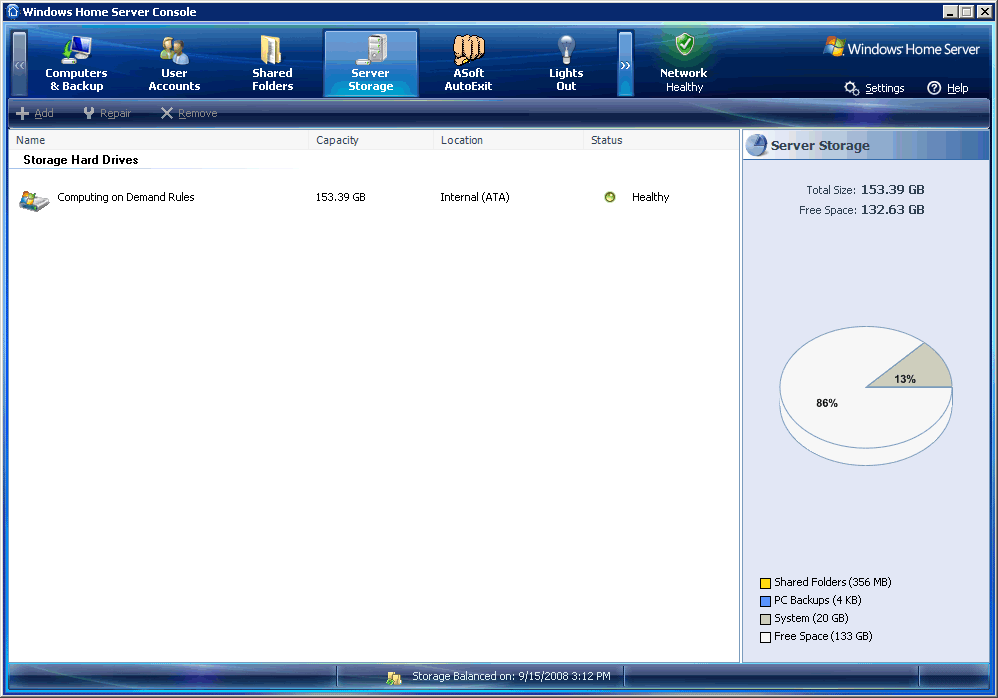
People like to customize things. With that said, I ran across an individual that had an issue with his WHS. He imaged his existing hard drive to a larger hard drive, but was left with the original disk name in the Windows Home Server Console. This poses no problems, but is more of an annoyance than anything. If you want to change the name, you can.
To change the name that appears in the Windows Home Server Console, you are going to have to modify your registry.

NOTE: Editing the Registry incorrectly can cause serious, system-wide problems that may require you to re-install Windows Home Server to correct them. Microsoft nor computingondemand.com cannot guarantee that any problems resulting from the use of Registry editing can be solved. Back up your registry first, but use at your own risk.
You are going to need to do this work from your WHS and the easiest way for this is to initiate a Remote Desktop connection to your home server. This will allow you to work on your Home Server as if there were a monitor, keyboard, and mouse attached to it.
-
Start
-
Run
-
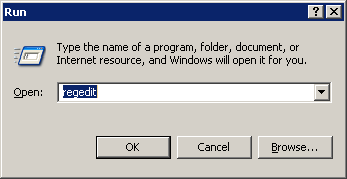
Type Regedit
-
Press OK
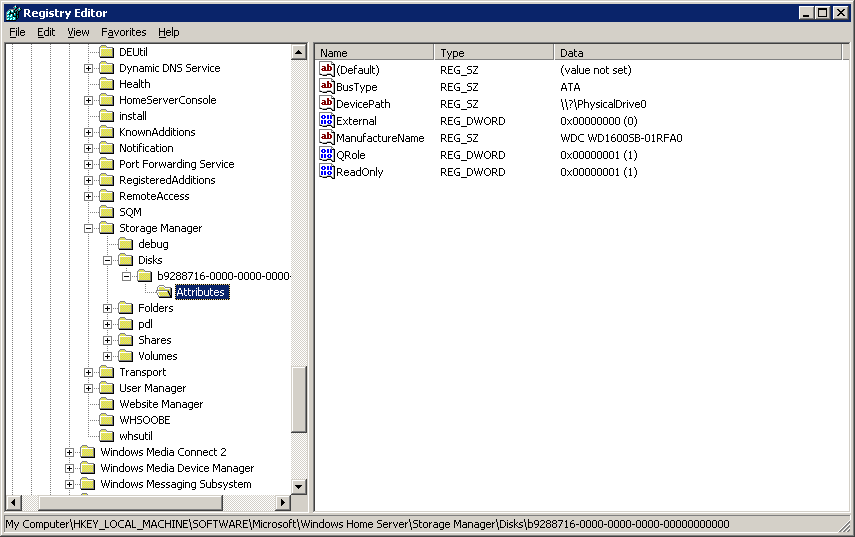
They key you are looking to modify is under [HKEY_LOCAL_MACHINE\SOFTWARE\Microsoft\Windows Home Server\Storage Manager\Disks\xxxxxxxx-xxxx-xxxx-xxxx-xxxxxxxxxxxx\Attributes] and called ManufactureName
Double click on the ManufactureName and change the value to whatever you want. Remember, I only have one drive so there is only one time I have to do this. If you have more than one drive, you will see multiple entries under Disks.
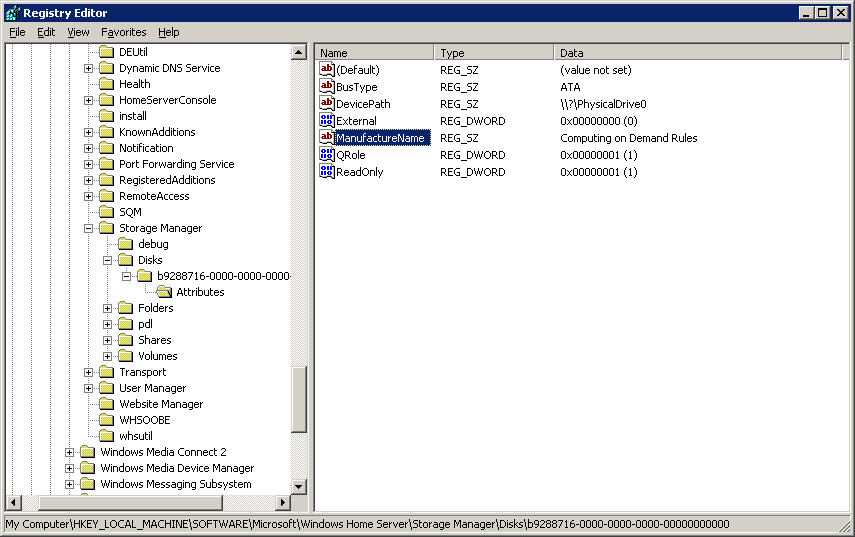
My Original:
[HKEY_LOCAL_MACHINE\SOFTWARE\Microsoft\Windows Home Server\Storage Manager\Disks\xxxxxxxx-xxxx-xxxx-xxxx-xxxxxxxxxxxx\Attributes]
“ManufactureName”=”WDC WD1600SB-01RFA0”
My Modified:
[HKEY_LOCAL_MACHINE\SOFTWARE\Microsoft\Windows Home Server\Storage Manager\Disks\xxxxxxxx-xxxx-xxxx-xxxx-xxxxxxxxxxxx\Attributes]
“ManufactureName”=”Computing on Demand Rules”
Close the Registry Editor, reboot, then open your Windows Home Server Console to see your changes.


Change the Name of Your Hard Drives … does not work with Win7-32 Ultimate. Easier way to use regedit is to use the inbuilt FIND value of the program.
How can I do the same for Windows XP ?
Change the HDD name in the registry, as I have a bug which changes the HDD name every time I boot up it restarts the PC and changes the HDD name !
Great Thanks!
Thanks very much for this, worked a treat for me.