 Computing on Demand PC News & Reviews

Just click on the language of your choice and you are presented with an option to install three programs – Olympus DSS Player, Windows Media Player 9 and Adobe Reader (to read the manual). I declined to install Media Player and Adobe having already had them installed. The installation of DSS Player took only seconds. When you fire up the program you are presented with the main menu screen:
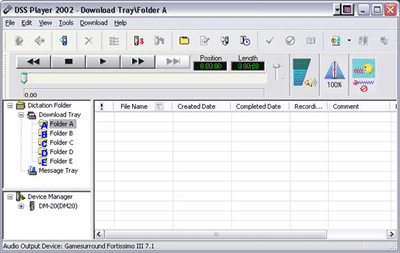
From here you can view all the audio files that are in the recorder, which folders they are in, transfer files, etc. You can play the files if you wish, delete them or any other operation that you would normally perform with files.
The process to place files in the recorder is fairly simple. Place a CD into your PC, start Media Player (MP) and copy the tracks you want. Once you have the songs copied to your PC, use the MP file menu and copy to device (you can select which folder you want to place them in also). After you have copied the tracks, start DSS again and you should have them listed. You can change the order at this time too. Below is a screenshot of DSS after I copied a track to it:
There are various options one can use to enhance the experience such as WOW effects. There is also an equalizer, though it is limited.
On the voice side, you can use the microphone built into the recorder itself, the remote unit microphone or another external microphone. If you choose to use a stereo microphone then you have the option to record in SHQ mode for the highest quality. The recording in voice mode can be accomplished in one of two methods. You can choose to manually press the record and stop buttons or you can use the built in Variable Control Voice Actuator (VCVA). You simply turn it on via the menu button and the recorder becomes a voice activated device. When the threshold limit is reached the records starts, when it falls below the limit it stops, simple as that. This saves battery life and eliminates “dead air”. You can also choose the microphone sensitivity by adjusting between conference and dictation modes. Conference is the high sensitivity mode suitable for, you guessed it, conference settings within large rooms; whereas dictation would be used for taking mental notes : and 2 person meetings. Once you are done recording, to listen to the message press the rewind button and then press play. An additional setting is noise cancel, to eliminate excess noise produced during a recording.
As far as the data storage component, it can’t be any simpler. Plug the device into your USB port, it is detected as an external device and shows up as another HDD. Double click the icon, open the desired folder location (there are 5 to choose from) and then it’s drag and drop time. Using an USB 1.1 connection it took 4 minutes to copy a 58MB zip file. To remove the files later just delete as usual.

