 Computing on Demand PC News & Reviews

There are more uses for your WHS then you can shake a stick at; whatever that may mean. The latest endeavor is using your Windows Home Server as an Internet Proxy. I personally use my Windows Home Server as a proxy to be able to view sites that my company blocks access to. Setting up a proxy can also allow you to control web content served in your home. If you have a child, you can block sites or even keywords to keep pages from being served.
With that said, there are a lot of proxy solutions out there for you to experiment with. One I have used in the past and liked is HottProxy, but it is designed to be much simpler than my current needs. I have now moved my focus to a product called FreeProxy from Hand Crafted Software.
Installation
As usual, all work will need to be completed from your WHS. Initiate a Remote Desktop connection to your home server. This will allow you to work on your Home Server as if there were a monitor, keyboard, and mouse attached to it. This article will also assume that you have some computer knowledge and are able to use RDC or the Add-in Asoft AutoExit, but I will try to be as thorough as possible anyway.
- Download FreeProxy: Click Here to Download
- Install with all Default Options
Once installed, the initial configuration can be done. Luckily, FreeProxy is very easy to configure and can also allow some really intense configurations for complete tunneling and the like. We are going to focus mainly on the simple proxy configuration and some filtering for our home users.

Most of the configuration is done for you with the default, installation we just need to fine tune somethings, add some authentication and setup the Windows Firewall.
A really nice features of FreeProxy is that you have a basic working proxy out of the box. You only need to configure the service to get it up and running.
Note: If you are interested in getting past your company’s web restrictions, you will probably have to change the port your proxy is operating on from 8080 to 8000. To do this, double click Ports in the main console window and change the port accordingly… then continue below.
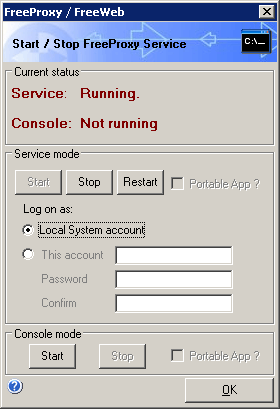
- From the console click Start/Stop.
- click start
- Then click Start under “Console Mode” to see if it is working properly. Don’t close this window though, it will shutdown your proxy until you reboot. Then everything will work just fine.
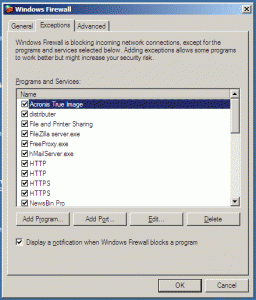
Your proxy is almost done. Hopefully you were prompted to allow or deny your proxy server when you clicked start, but if you weren’t; you need to configure the Windows Firewall to allow your Proxy Server as an exception and forward port 8080 (or 8000 if you are trying to get past your company’s web restrictions) to your WHS from your router. You can access the firewall configuration by opening the Windows Firewall application in your control panel.
- In the Exceptions tab, select add program
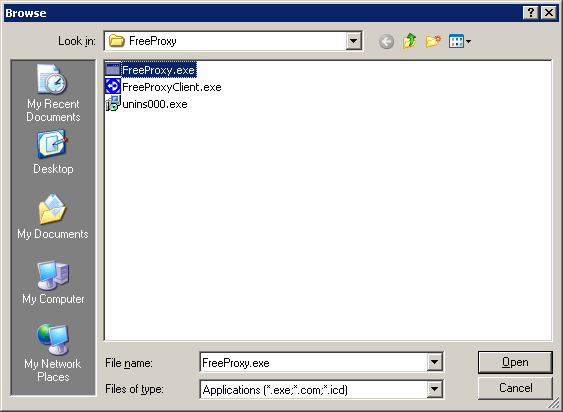
- Navigate to C:\Program Files\Hand-Crafted Software\FreeProxy
- Select FreeProxy.exe
- Click OK a few times and you now have allowed FreeProxy as an exception in your Windows Firewall.


Is there a way to set this up so that you are using an anonymous IP address? Say if you were trying to access content in another country which blocks U.S. IP addresses?
how can i hide the lan settings
Be very careful when using this software if you set it up without authentication it will broadcast itself for anonymous users to use which will utilize your bandwidth and slow down your internet connection. I have used this software many times. You can see who is logged into the proxy. If you don’t believe me keep encryption off and view the logs for who is connecting once you set it up. you will see many people connecting anonymously if Authentication is turned off. I am sure the developers of the software were very aware of what they were doing because it is very intentional and a noob using this software will not know any better. If you require authentication you will have nothing to worry about.
I have done a little research and used this FREEPROXY program it slows down your internet connection because it shares out the proxy with anonymous internet users if you do not have encryption enabled. Be very very careful when using this software it will broadcast your proxy IP out to all to use if you do not require authentication.
ya
I wanted to be able to access my WHS internet connection at my workplace. I was able to set it up successfully but it doesn’t ask me for a username or password when I access the proxy from work or wherever I am at. I used the NTLM authentication but I guess that’s for something different (?). I would like to enable a password that I must enter when I first start the browsing session from work. Is there a way to accomplish that? Thanks.
This is an issue for me as well…what is worse, it seems to allow unfettered access to the LAN side of my local network. For instance, I can access my router config page simply by connecting to the proxy. That doesn’t seem right. What happened to the authentication?
Can you tell me if a proxy server will help me here.
I have a laptop and a desktop machine. My laptop is a work machine and my desktop is mine. My laptop is part of my work domain and I can start a VPN to access resources at my work. However, my developer tools are quite CPU-intensive and run quicker on my desktop machine, so when I’m working at home I prefer to use that. The desktop isn’t part of the work domain, therefore can’t use the VPN. But I need to access a SqlServer on the company LAN. Can I set up my laptop to connect to the company VPN and act as a proxy server. Then connect my desktop to to the proxy server to be able to access the company network?
That is not the correct application for this…
When you say make the dns entries static. What do you mean?
Setting this up was a dream, altho performace is dreadful! Is there anyway to increase internet speeds I have a gigabit network and 20 mbit internet connection, But since setting this up my internet connection isnt even reaching 1 mbit!
Which version do you have installed? I would also make the DNS entries static for your ISP on your network settings in WHS. That might help the name resolution be a bit quicker, which may have a direct impact on your speeds.