 Computing on Demand PC News & Reviews

Every person has different tastes when it comes to their installation of Windows. Through the years that have been many things that I do right off the bat when getting my install “just right”. In the XP days, the first thing I would do was to stretch the taskbar, enable Quick Launch, add an address bar, unlock it, then move those around a bit. If my taskbar wasn’t set up this way, I HATED IT… in fact, I would move other people’s around when I worked on their computers! Windows 7 is no different for me, however, the list isn’t as exhaustive yet. We covered Part 1 and Part 2 of a multipart series, here is Part 3
11. Show full folder paths in both panes in Windows Explorer
- Open My Computer
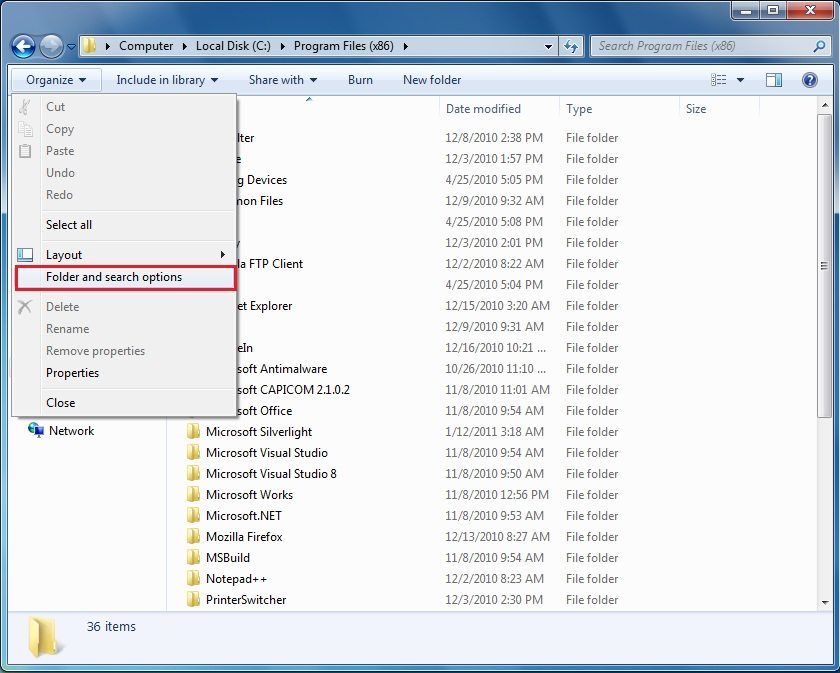
- From the Organize menu choose Folder and Search Options
- Select the General tab
- Check the box for Show all folders
- Check the box for Automatically expand to current folder
- Press OK


You know how you view a folder in details mode, the columns are squished by default and it leaves this useless white space on the right? When I right click the top columns it allows me to automatically resize all columns to fit. The problem is I have to do this for every folder manually. Is there a way to have it to that by default? Some sort of registry hack?